
Word export guide: paper layout, DOCX, copy and PNG
Set paper size, orientation, fonts, line backgrounds and wrapping; download a Word document, copy formatted code or save a code-block PNG.
Use the Code Highlighter for Word when the destination is a report, assignment or other Word document. It offers three different outputs: an editable DOCX, formatted clipboard content and a code-block PNG. This guide explains which settings each output uses.
Start with source code and a theme
Paste code into Source code, load a UTF-8 text file, or choose a language and load its example. File import accepts non-empty text files up to 1 MiB. Select the actual programming language rather than relying on the filename. The language and theme lists support search. Load demo supplies a working example with emphasis and added/removed lines.
Choose a theme that is readable against its background. A light theme generally suits a white report page. Changing the website's light/dark appearance does not select a code theme for you. Highlighting does not execute or fix the source, and it is not an automatic code formatter.
See the source input guide for the input controls.
Paper size, orientation and margins
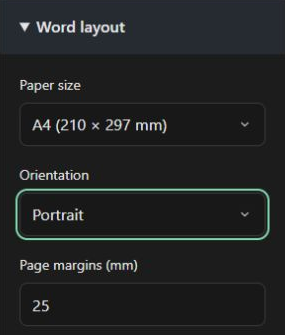
Screenshots show the English controls. The same controls are available in your selected interface language.
The paper list includes A3–A6, ISO B4/B5, JIS B4/B5, C3–C5, Letter, Legal, Tabloid, Super B, Statement and Executive. ISO and JIS B sizes are different; check the dimensions printed beside the name. Portrait uses the shorter side as the width; landscape swaps width and height. Margins remain the distance from each paper edge.
Set margins between 5 and 40 mm. The preview reports the resulting page and text-area dimensions. Start with A4 portrait and 25 mm margins for an ordinary report, then adjust to your submission requirements. Landscape can make a long SQL query easier to read without shrinking the font. Choosing a larger paper size does not change the code font size.
Fonts, spacing and long lines
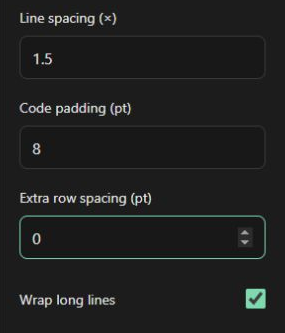
| Setting | What it changes |
|---|---|
| Font | Consolas or Courier New; use the same installed font in Word |
| Font size | 7–24 pt; check readability at the intended print size |
| Line spacing | 1.2–2.5 times the font size |
| Code padding | 0–24 pt inside the code block, separate from page margins |
| Extra row spacing | 0–12 pt added between physical code rows |
| Wrap long lines | Breaks long lines to fit the available code width |
Wrapped continuations keep their source line's colors and background. Only the first visual row carries its source line number. The tool paginates the resulting rows for the Word document. If wrapping is off and code exceeds the text area, exporting is blocked until you widen the layout, reduce the font size or turn wrapping on.
Line numbers and solid line backgrounds
Turn line numbers on or off, change the starting number and set the number color. Line ranges always refer to source positions: setting the starting number to 20 does not make source line 1 become range 20.
Enter ranges such as 1, 3–5 using a normal hyphen in the field (1, 3-5). Emphasized, added and removed lines have separate solid color pickers. Removed lines take precedence over added lines, which take precedence over emphasis when ranges overlap. Diff indicators add a plus or minus marker; they do not compare two files or edit your source.
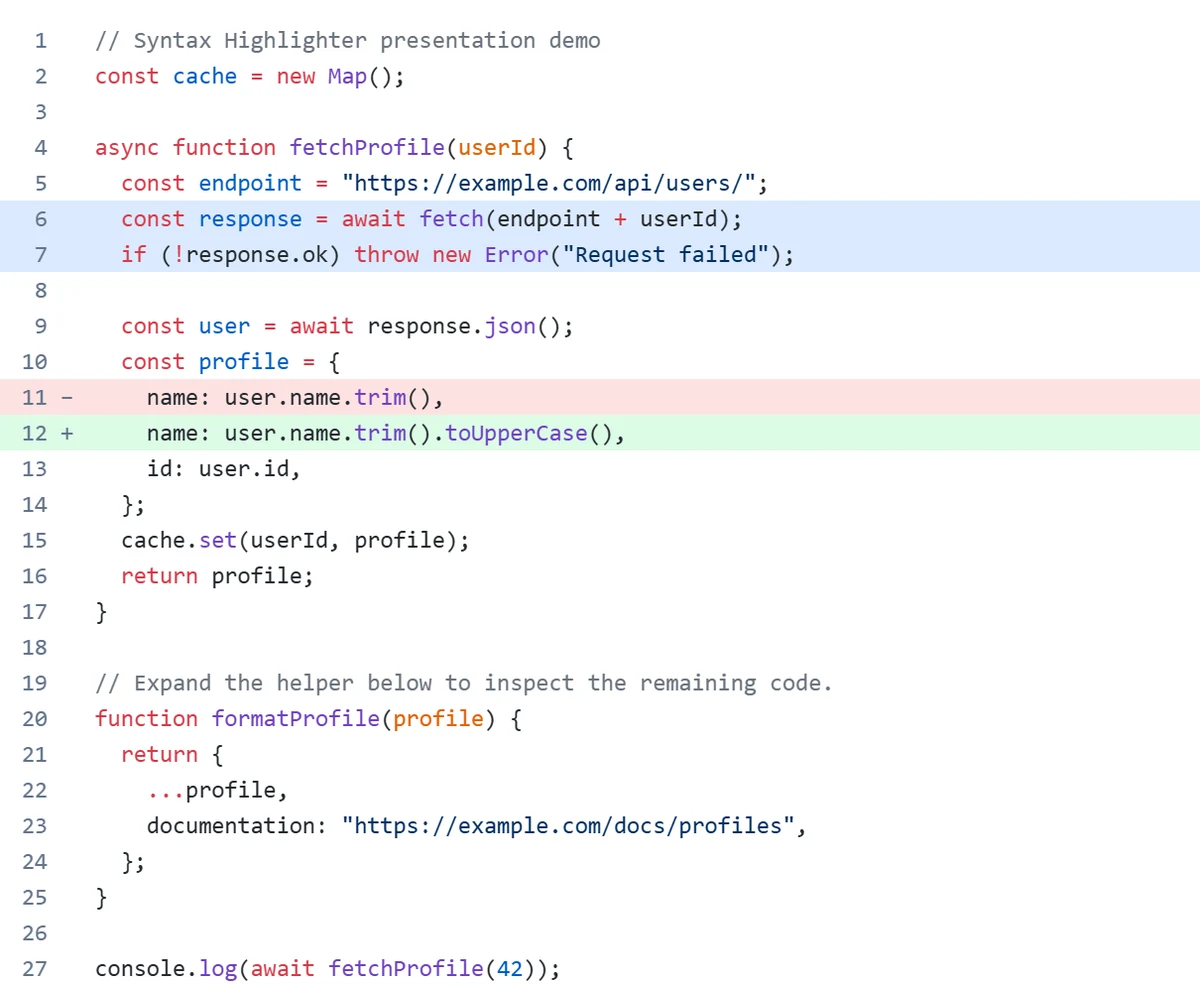
There is no opacity control in this Word workflow. Use light solid backgrounds with a light code theme, and check text contrast after changing any background. The homepage's focus, folding, autolink and HTML styling strategies are not Word settings.
Choose your output

Download Word creates a DOCX with the selected page dimensions, orientation and margins. Text remains editable. Open it in Word and inspect page breaks, font substitution and print preview before submitting it.
Copy to Word puts formatted HTML and plain text on the clipboard. Paste into the target document and choose Keep Source Formatting. The destination document controls paper size and margins; copying is not a way to replace its page setup. Browser clipboard permissions must allow the operation.
Download PNG creates one continuous code-block image, including syntax colors, line numbers, solid backgrounds and code padding. It excludes paper margins, page breaks and the preview's paper shadow. Current font, spacing and wrapping still shape the block. Even if the DOCX has several pages, the PNG is one image rather than a ZIP of page screenshots. Very long examples can produce large images; export a focused excerpt when sharing on a slide or in a message.
Loading, failures and fidelity
While the preview updates or an export is being prepared, the right-hand pane shows a spinner and preview settings/actions are locked. After failure, use the error message and retry; correct invalid values or overflowing lines before exporting. Source text is not sent to a formatting server by this tool, though the site still loads assets and makes its ordinary website requests.
The browser preview is a layout reference, not the Microsoft Word rendering engine. DOCX uses the same configured dimensions and prepared rows, but Word version, font substitution and later edits can alter pagination. PNG fixes the code block's appearance; it sacrifices editable text. Neither format proves that the program is correct.
Try the Word tool · Choose the right way to insert code into Word · HTML export for websites