
Download Word
Start a report with an editable DOCX. The download includes the selected paper size, margins, syntax colors and line layout. You can select and edit the code in Word.
Format highlighted code for Word. Set A4 or A5 paper, fonts and spacing, then download an editable DOCX, save PNG images or copy formatted code.
Prepare Python examples for assignments, SQL queries for reports or JavaScript snippets for technical specifications. Choose the language, a readable theme and line numbers that your explanation can refer to. Use solid backgrounds to distinguish important lines from additions and deletions. Choose from 17 paper formats and adjust orientation, margins, font size, spacing and wrapping before downloading Word. For an existing document, copy formatted text; for a fixed visual, download the code block as PNG. Syntax highlighting changes presentation: it does not execute, correct or automatically reformat your program.
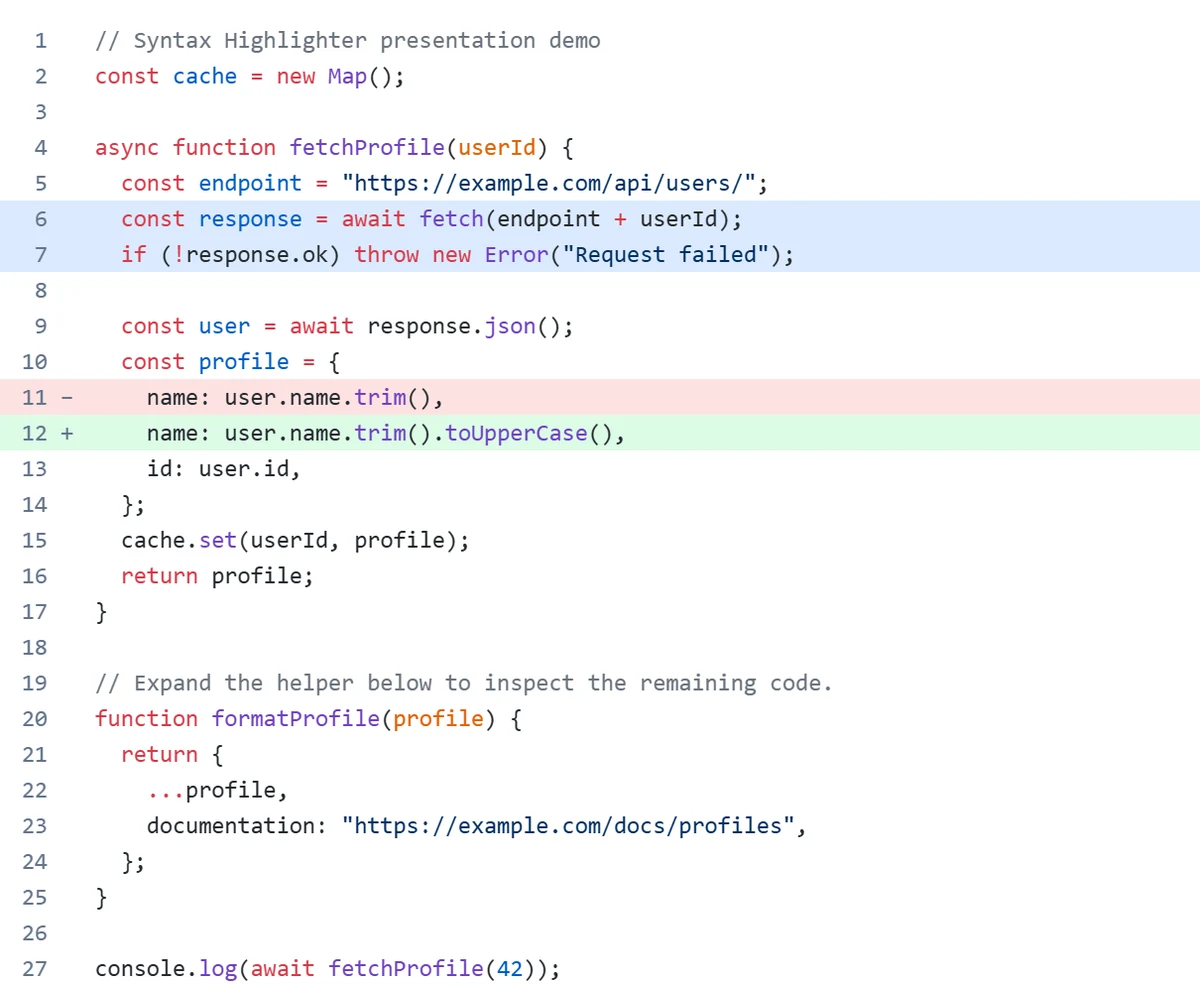
Paste a snippet or load a file, then choose its language. Use Python, JavaScript, Java, C++, SQL or another language from the searchable list. Pick a theme that stays readable on your document background.
Choose A4, A5, Letter or Legal, then set orientation and margins. Adjust the font, line spacing and wrapping in the page preview. Add line numbers and solid backgrounds to explain changes in a report or assignment.
Download an editable Word file, copy formatted code into an existing document, or save the highlighted code block as an image. Review the final document before sharing or printing.
Start a report with an editable DOCX. The download includes the selected paper size, margins, syntax colors and line layout. You can select and edit the code in Word.
Insert a code block into an existing document. Copy rich text, paste into Word and select Keep Source Formatting. The destination document still controls page size and margins.
Save the highlighted code block as a single PNG, with its colors, line numbers and line backgrounds. Paper margins and page breaks are excluded. Text in the image cannot be edited as code.
For assignments, technical reports and documentation that need readable code alongside the explanation.
No installation is needed for this browser tool. Word add-ins such as Easy Code Formatter offer an in-document workflow; here you prepare the code separately, then download or copy the result. This site is independent of those add-ins.
Use Copy to Word and choose Keep Source Formatting in Word’s paste options. Pasting as plain text removes colors. Fonts and Word versions can change wrapping; use DOCX to include page settings, or PNG when an editable block is not needed.
Enable wrapping, choose landscape or reduce the font size. Match the preview margins to your document. If a line still exceeds the text area, exporting is blocked until the layout fits. A wrapped line shows its number only on its first row.
Highlighting and file generation run in your browser. The formatter does not send your source code to a server. Copying places the result on your device’s clipboard; you decide where to paste or save it.
Choose a language and theme, then set the paper size and spacing. Line backgrounds use solid RGB colors. Wrapped lines keep their original line number only on the first row.
Use the same font in Word as in the preview. Font substitution and Word versions can affect text metrics; this preview is a layout reference, not a Word renderer.
DOCX keeps the code editable. PNG saves one continuous highlighted code block without paper margins or page breaks. Everything is processed in your browser.
Copying preserves text formatting, but the destination Word document controls its paper size and margins. Download DOCX to include the page setup.