
Syntax Highlighter guide: from source to shareable code
Learn the complete browser workflow: source code, themes, line effects, JSON settings, HTML files and PNG images.
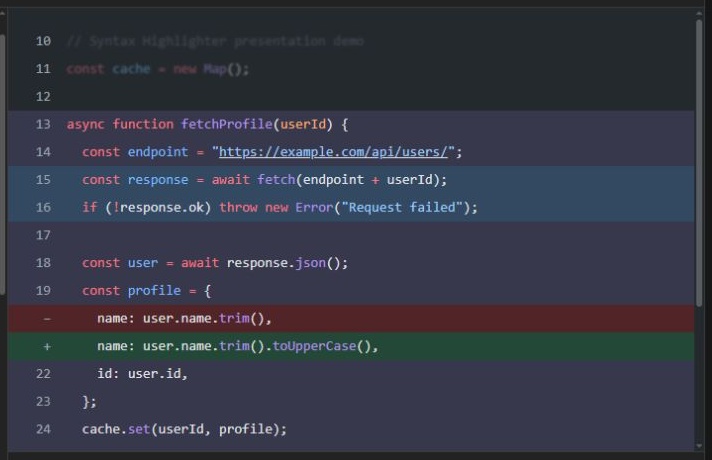
Screenshots show the English interface; controls are available in your selected website language.
Start with a real example
Open the online syntax highlighter, paste code or choose a language, then select Load example. Language selection preserves your existing source; loading an example replaces it. The preview updates as you edit. You do not need an account to use the homepage tool.
Choose Load demo in Code preview to explore emphasis, focus, additions, deletions, numbering, folding and links together. It replaces the source and presentation settings, while preserving your chosen output format. Save your current work before loading it.
Follow the workflow
- Prepare source code: paste, import a UTF-8 file, clear the editor, search languages or load a gallery example.
- Choose a theme: filter light or dark themes and search by name.
- Highlight or focus lines, mark added and removed lines, and configure line numbers.
- Collapse sections and activate links.
- Inspect the live JSON configuration, then copy or download HTML or save a PNG.
Understand the workspace
Settings sit to the left of the preview on wider screens. Expand a named settings group; each information icon explains its control. On smaller screens, settings, preview and output files stack vertically. Long source and output lines scroll within their own areas. The output-file area can be collapsed independently.
Website light/dark mode is separate from the code theme. The header language selector changes interface copy, not the programming language. The sharing icons share the website; they do not publish your source or encode your JSON configuration in a share link.
What runs locally
Code highlighting runs in your browser. Resources for the selected language and theme load as needed. This is syntax coloring, not code execution, linting or formatting. An initial network connection is needed to load resources; an offline application is not promised. Browser storage or a saved share URL does not currently restore an editing session.
If highlighting fails to load, check your network connection and reload after saving your source. If a generated output fails, use its retry control. Read workflow comparisons to choose between a browser tool, an API and an image-focused editor.
Open the code highlighter · All guides · Articles and comparisons