Choose code highlighting themes
Search code color themes, filter dark and light options, and distinguish code presentation from website appearance.
Screenshots show the English interface; controls are available in your selected website language.
Choose a code theme
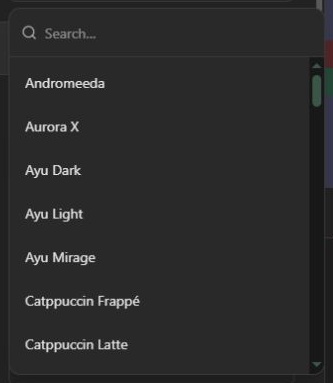
Expand Color theme in Code preview. Theme type filters the catalog to all, dark or light themes. If your current theme does not match a newly selected filter, the first matching theme is selected. Open the theme dropdown and type a name to narrow the list; the selected theme updates the code preview without replacing source.
Choose from the themes available in the selector. There is no custom theme upload control. The initial code theme is GitHub Dark.
Check contrast with line effects
Themes set token colors, code foreground and code background. Emphasis, focus, additions and deletions add their own backgrounds. A color that reads clearly on a dark theme may need a different opacity on a light theme. Compare comments, strings and selected lines before exporting. Use the separate color and opacity controls in each effect; choosing a theme does not reset those settings.
Website appearance is separate
The header light/dark toggle changes the website shell, not the output theme. Your exported code carries the selected code theme rather than relying on the surrounding site's styles. Theme type is a selector filter, not a JSON output property; the selected theme ID appears as theme in config.json.
Language and theme resources load on demand in the browser. If a choice is still loading, wait for the preview before copying or downloading. A network failure should not be mistaken for an unsupported color theme. Continue with line effects or HTML output.
Open the code highlighter · All guides · Articles and comparisons