
How to insert code in Word without losing formatting
Compare editable DOCX, formatted paste and code images. Keep syntax colors and indentation, fit long code to the page and avoid common Word paste problems.
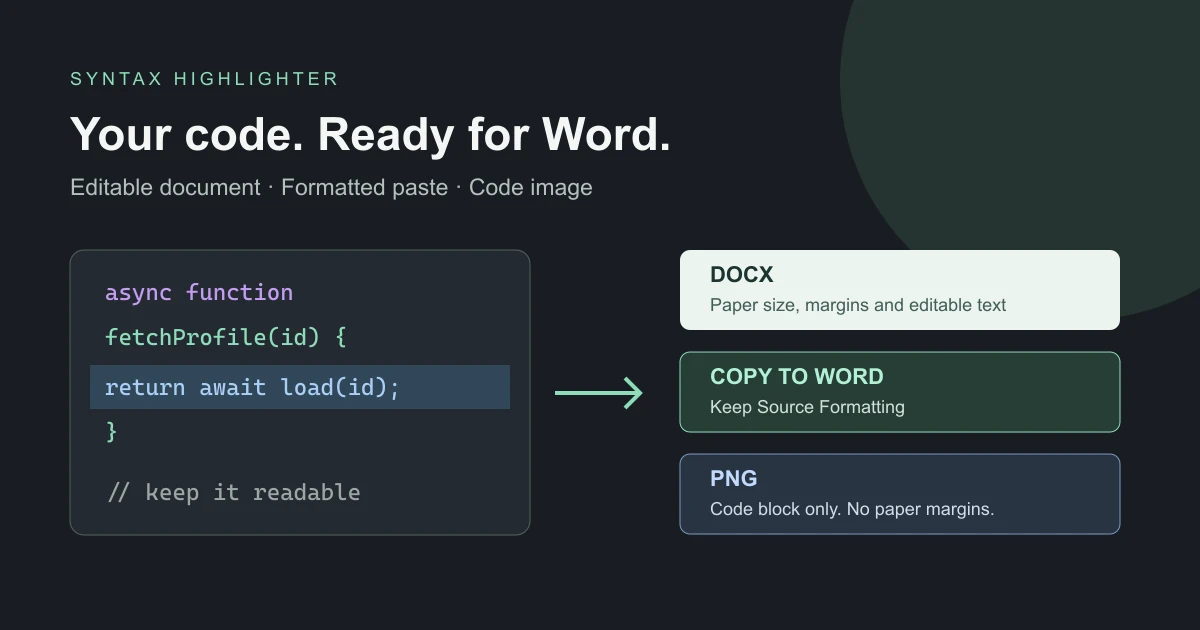
A code sample in a report has two jobs: readers must be able to follow the explanation, and the sample must fit the document. Copying from an editor can preserve colors but lose them at paste time. A screenshot keeps the appearance but makes the code harder to edit or reuse. The right method depends on what the reader needs next.
Choose the result before formatting the code
| Your next step | Choose | What to check |
|---|---|---|
| Start a document with editable code | Download Word (DOCX) | Paper, margins, font and pagination |
| Add code to an existing report | Copy to Word | Keep Source Formatting and the destination's page setup |
| Add a fixed visual to a slide or report | Download PNG | Readable image size and a separate text version if needed |
| Publish selectable code on a website | HTML export on the homepage | The destination's handling of HTML and CSS |
The Word code highlighter supports the first three workflows. Its PNG is the code block itself, not a screenshot of the Word page. You can preserve line colors and numbers without carrying a large sheet of blank paper into your document.
A practical workflow for a report
Start with a short, representative example. Select Python, SQL, JavaScript or the language you actually used. Syntax colors are a reading aid, not a correctness check. If the report explains a bug fix, use separate solid backgrounds for added and removed lines and describe the change in words as well.
Set the paper to match your assignment or report template. Try A4 portrait for short samples and landscape for wide queries. Keep font size readable rather than shrinking everything until it fits. Line wrapping is often a better choice, but inspect wrapped strings and indentation. Code padding belongs inside the block; page margins belong around the document's text area.
For a new file, download DOCX and open it in Word. For an existing document, use Copy to Word and choose Keep Source Formatting when pasting. Microsoft describes the difference between this option, merging formatting and keeping only text in its paste-formatting guide. The destination document still owns its paper size and margins.
Why the pasted code can look different
Colors disappear: check that you did not use plain-text paste. Copy again and select the source-formatting option. Word for the web preserves supported formatting where possible, but Microsoft notes that some properties may not paste as expected; see its web clipboard guidance.
Lines move or the document gains a page: check that Word uses the same font and that the target margins match. An unavailable font may be substituted. Editing text in Word can also change wrapping after export. Review print preview before sharing.
The image looks too small: PNG contains the full code block. A long snippet becomes a tall image that may be scaled down on insertion. Shorten the example, split the explanation into smaller excerpts or use editable text instead. Always keep an accessible text version when readers need to copy or run the code.
Export is disabled: wait for the right-hand loading indicator, then check for invalid settings or lines wider than the text area. Enable wrapping or give the code more width. Do not repeatedly click while an export is running.
Online tool, editor copy or Word add-in?
FormatCode presents a browser workflow with formatted copy and DOCX export. HighlightCode focuses its Word page on selecting a language and pasting with formatting. Easy Code Formatter is an add-in that formats selected text inside Word with themes and line options.
These are different working locations, not a universal ranking. Copying from your existing editor may be sufficient for a short sample. An add-in can suit someone who wants to work within Word. A browser tool is convenient when you want to prepare the example separately and choose the output before inserting it. Here, the dedicated page combines paper controls, solid line backgrounds, DOCX, formatted copy and code-block PNG. No Word add-in is required for this workflow.
Product pages reviewed October 17, 2026. This comparison concerns the documented workflows, not speed benchmarks, pricing or a claim of pixel-identical Word rendering.
Before you submit
Read the sample at normal page size, check the first and last lines, verify line references in the surrounding prose and remove private data. Keep source text if the reader needs to reuse it. The Word export guide explains each setting and output in detail; open the tool when you are ready to prepare the snippet.