
Save highlighted code as a PNG image
Download a PNG of the rendered code, including line effects and content beyond the preview scroll area.
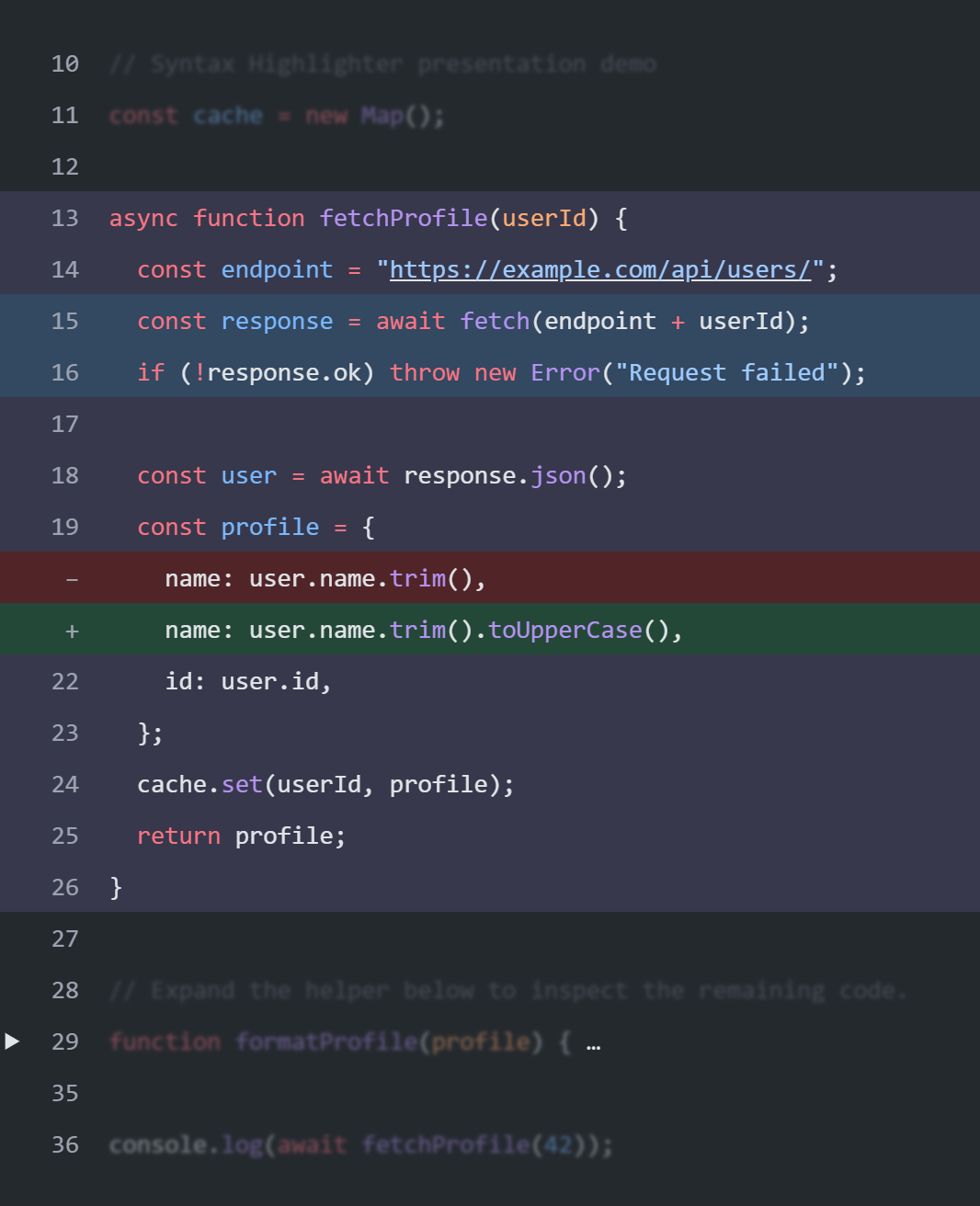
Screenshots show the English interface; controls are available in your selected website language.
Prepare the picture
Select your language and theme, configure line effects and wait for the preview to finish. Expand any folded section that should appear in the picture, or keep it closed for a shorter image. Open the arrow beside Download files and choose Download image to save syntax-highlighter.png. Clicking the main button downloads the file bundle instead.
The image contains the code viewport, not the sidebar, editor, buttons or JSON panel. It includes content beyond the current vertical and horizontal scroll position. The current fold state is preserved; hidden folded lines are not automatically expanded. Line numbers, diff markers, colors, opacity and focus styling appear as rendered.
Size and readiness
Capture uses a pixel ratio of 2 and the complete rendered content width and height. Long unwrapped lines can therefore create a very wide image. This is not a cropping or social-card design tool: no background frame, watermark or image-size controls are provided. Trim the source or fold supporting sections before capture if a compact image is needed.
The button is unavailable until the latest output has loaded. While capture runs, duplicate clicks are prevented. If you change the preview during capture, the operation may fail rather than save an outdated image. Retry once the preview is stable. Very large images can exceed browser memory or canvas limits; use a shorter example in that case.
Publish with a text alternative
A PNG has no selectable source, active links or interactive folding. Add meaningful alt text and provide the code separately when readers need to copy or search it. Rename the download to describe its subject, such as python-http-request-error-handling.png, instead of a generic numbered screenshot. Do not place secrets in a screenshot.
Choose HTML export for interactive documentation. Read code images versus HTML for the trade-offs compared with Carbon and Ray.so.
Open the code highlighter · All guides · Articles and comparisons